

How Tool Calling Works
When a tool is configured, the AI agent automatically detects when it’s needed during a conversation:- User asks a question that requires an external action (e.g., “What’s the EMI for a ₹3,00,000 course?”)
- Agent generates a tool call request with the extracted parameters.
- Platform executes the API call asynchronously in the background.
- Result is returned to the agent, which responds to the user with the information.
Tool execution is non-blocking. The agent continues listening and can respond to follow-up questions while the API call is in progress. Results are delivered automatically as soon as they arrive.
Best Practice: Test in Postman First
Before adding a custom tool, always test the API in Postman first:- If you’ve received a cURL command, paste it into Postman and test with multiple scenarios.
- Verify response formats, error cases, and parameter requirements.
- Identify which values are static (e.g., API keys) vs. dynamic (e.g., user-provided inputs).
Configuring a Custom Tool
Navigate to your agent → Knowledgebase and Tools → Custom Tools → New Tool. Below is a step-by-step walkthrough using an EMI Calculation API as an example.Step 1: Basic Information
Fill in the top section of the form: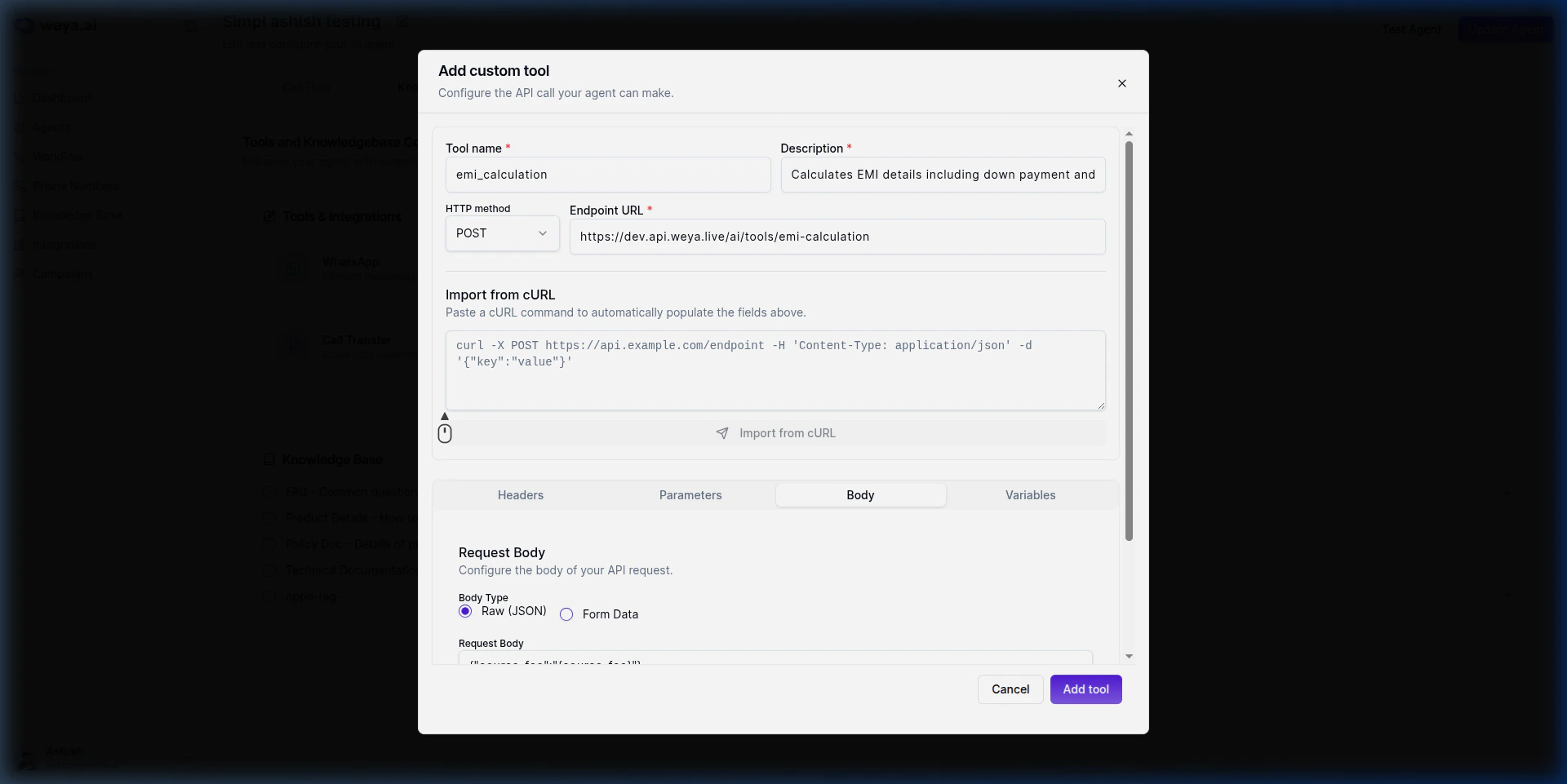
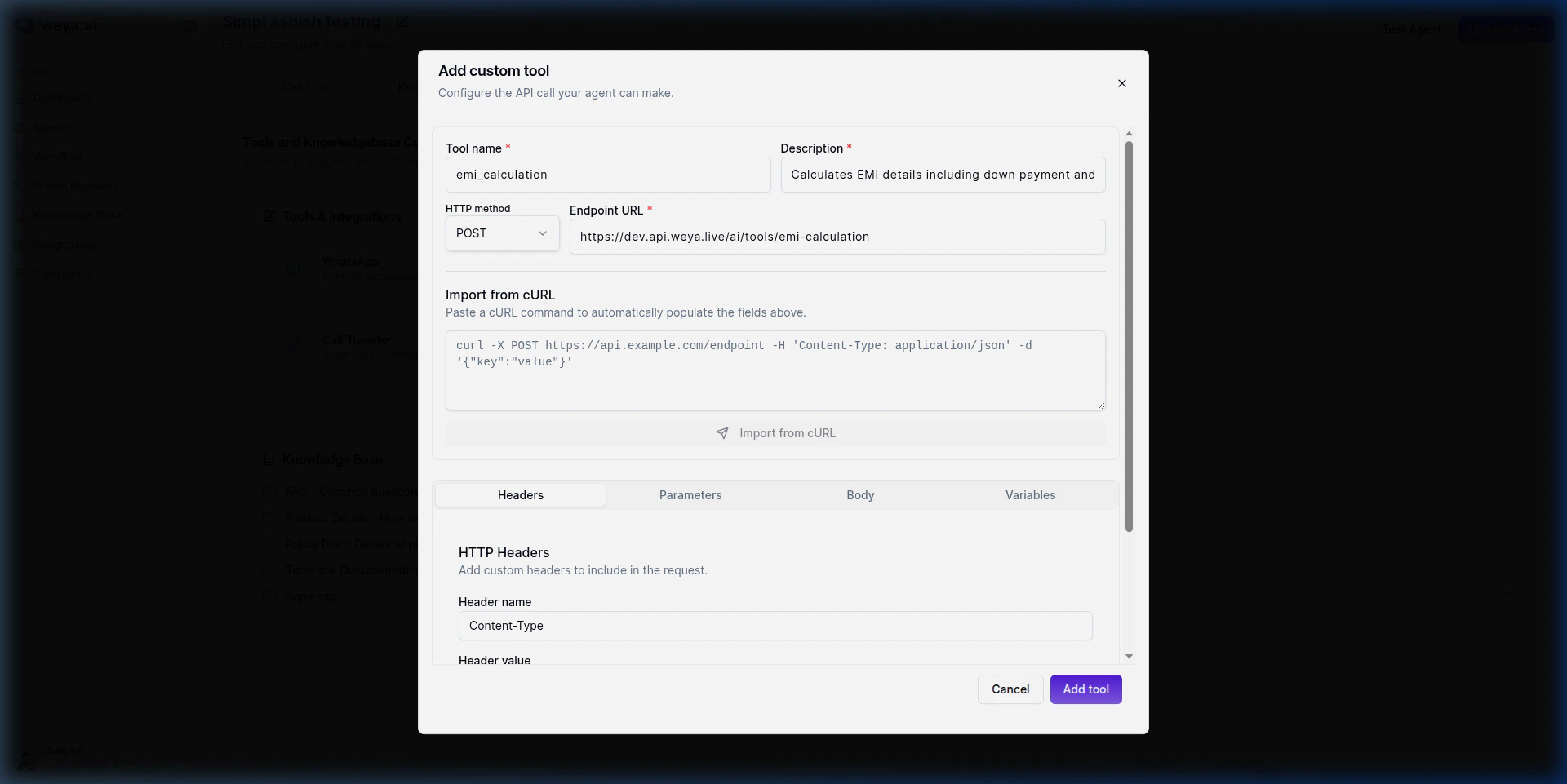
Step 2: Headers
Switch to the Headers tab to add any HTTP headers required by the API. Click + Add header and enter the header name and value. For our example:
Headers can contain:
- Static values — Fixed strings like
application/jsonorBearer your-api-key - Dynamic values — Use
{variable_name}syntax to inject runtime values
Step 3: Request Body
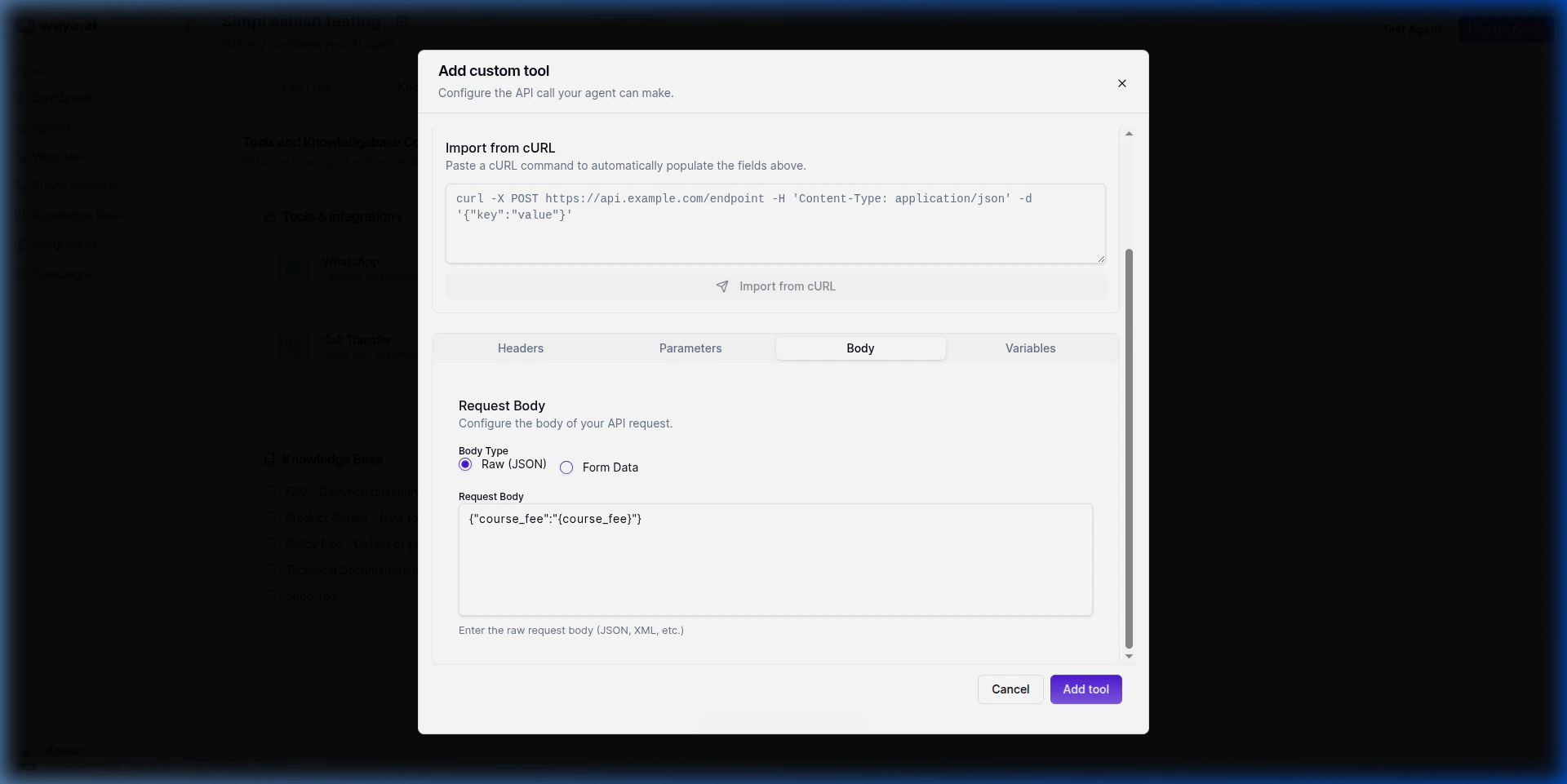
Switch to the Body tab to configure the request payload.- Select Body Type: Choose
Raw (JSON)for JSON payloads orForm Datafor form-encoded data. - Enter the Request Body with
{variable_name}placeholders for dynamic values:
{course_fee} placeholder tells the system to inject the value extracted from the user’s conversation at runtime.
Step 4: Variables
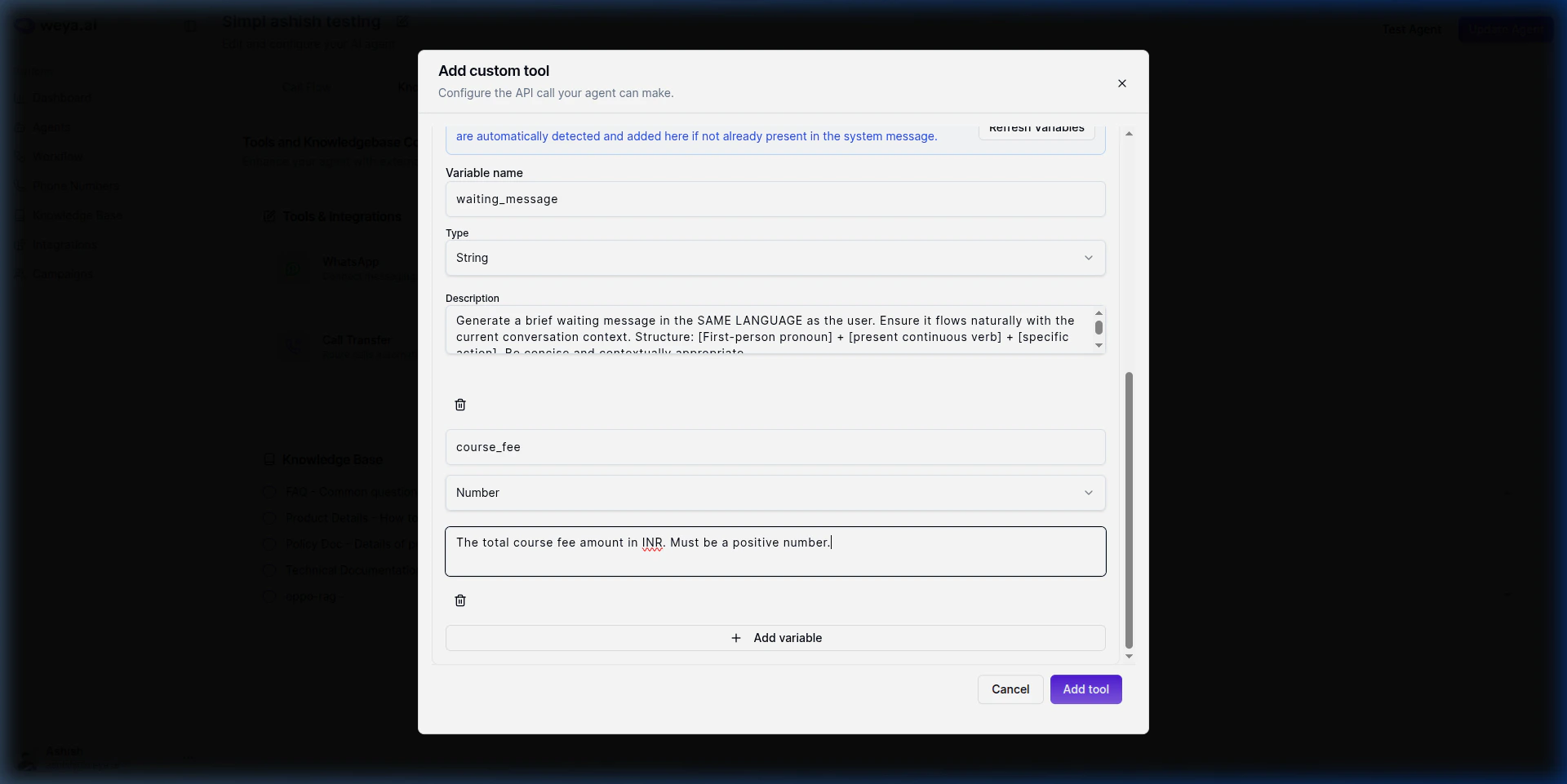
Switch to the Variables tab. Click Refresh Variables to auto-detect all{variable_name} placeholders used in your headers, parameters, or body.
For each detected variable, configure:
Step 5: Save the Tool
Once all fields are configured, click Add tool. The tool will be attached to your agent and can be referenced by the tool name you specified (e.g.,emi_calculation).
Static vs Dynamic Values
Understanding the difference is key to configuring tools correctly:Tips for Writing Good Descriptions
- Tool description: Clearly state what the tool does and when to use it. Example: “Calculates EMI details for a given course fee. Use when the user asks about payment plans or EMI options.”
- Variable description: Specify what to extract and the expected format. Example: “The appointment date in YYYY-MM-DD format.”
- Keep descriptions concise — 1-2 sentences maximum.
💡 Tip After adding the tool, make a test call to your agent to verify the tool is triggered correctly and returns the expected results.